The console menus
Six menus sit across the top of the header: Setup, Patch, Scenes, Meters, Layouts and Help. Everything the desk can show is behind one of them, and this page is the list — one line per item, with a link to the page that explains it properly.
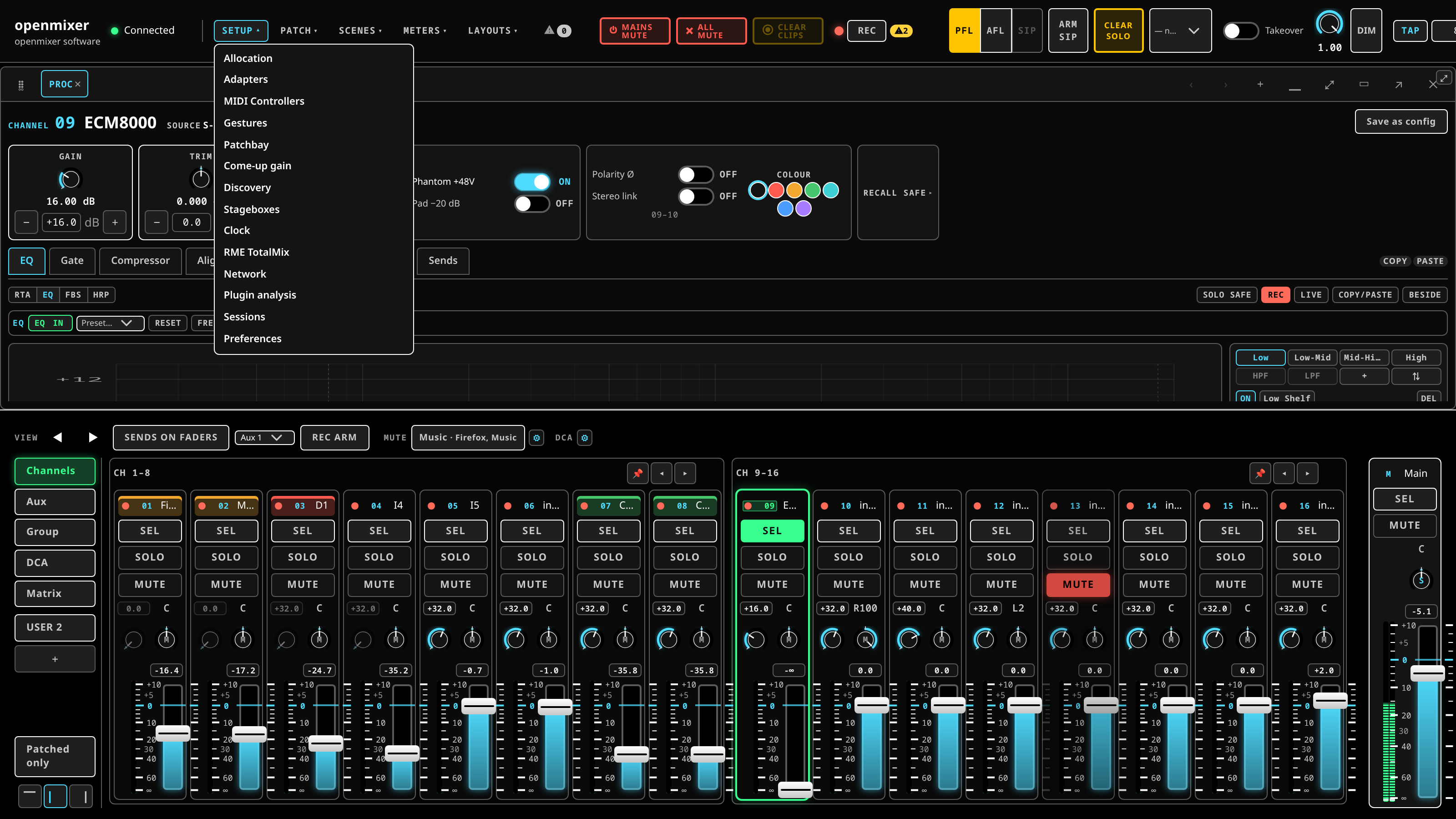 The header menus: one is open at a time, a click on an item runs it and closes the menu.
One menu is open at a time. Clicking an item does the thing and closes the menu; a click
anywhere else, or the Esc key, closes it without doing anything.
The items land in one of two places, and it is worth knowing which:
- The config zone — the reserved column at the top right. It holds one panel at a time and is where the between-songs settings live. On a narrow screen it comes in over the right edge with a dimmed backdrop; tap the backdrop to send it away.
- The work zone — the middle of the screen, where the mixing panels live. Opening a work-zone panel adds it to the current arrangement rather than replacing it. See layouts and the work zone.
Setup
Fourteen panels, all of them in the config zone.
| Item | What it is |
|---|---|
| Allocation | How many channels and buses this console has. See the Setup panels. |
| Adapters | The I/O endpoints and control surfaces the console talks to. See the Setup panels. |
| MIDI Controllers | The control surfaces that are configured, whether each is present, and the autodetect button. See the Setup panels. |
| Gestures | Encoder double-tap and long-press timing. See the Setup panels. |
| Interface takeover | Whether the console holds the audio interface exclusively. See the Setup panels. |
| Come-up gain | What a fresh strip starts at. See the channel strip. |
| Discovery | Network audio devices found on the wire. See the Setup panels. |
| Stageboxes | The boxes this console knows. See the Setup panels. |
| Clock | The graph clock and the REAC wire clock. See the clock. |
| RME TotalMix | The internal routing of an RME interface, owned by the console. See the Setup panels. |
| Network | The address and port the server is answering on. See the Setup panels. |
| Plugin analysis | Plugin cost measured on this machine against the figures the catalog ships. See the Setup panels. |
| Sessions | The saved consoles on this server. See scenes and sessions. |
| Preferences | Theme, personality, density and language. See personalities and themes. |
Patch
Four work-zone panels.
| Item | What it is |
|---|---|
| Patchbay | Sources against channels, and the output legs. See the patchbay and the graph. |
| Matrix | The crosspoint matrix. See the matrix and outputs. |
| Graph | The same routing as a node canvas. See the patchbay and the graph. |
| Source layer | Named inputs with their head-amp and direct paths. See the patchbay and the graph. |
Scenes
| Item | What it is |
|---|---|
| Scenes | Store and recall named mix snapshots, with recall-safe. See scenes and sessions. |
Meters
| Item | What it is |
|---|---|
| Meter bridge | Every strip at once, with peak-hold and clip. See metering and latency. |
| Analyzer | The real-time spectrum of any source. See the analyser. |
| Telemetry | Per-channel latency, the mains and monitor paths, live xruns. See metering and latency. |
| Perf | Quantum, sample rate, xruns and the graph load behind them. See metering and latency. |
Meter bridge and Analyzer open in the work zone; Telemetry and Perf open in the config zone.
Layouts
Two actions, then the whole list of work-zone panels.
| Item | What it is |
|---|---|
| Reset to default | Throw away this window's arrangement and go back to the shipped one. |
| Save config… | Freeze the current arrangement as a named layout that rides the session. |
Below the divider, every work-zone panel the console has, each one an "add this panel": Fader wall, Processing, Plugin rack, Plugin editor, Plugin catalog, Sends, Routing, Bus sends, Bus masters, Matrix, Output inserts, Source layer, Patchbay, Talkback, Record, Graph, Meter bridge and Analyzer. See layouts and the work zone.
Help
Last of the menus, and always there — it does not disappear when the console is offline, which is exactly when you are most likely to want it.
| Item | What it opens |
|---|---|
| Manual | This manual, from the console's own copy, in a panel over the desk. |
| Plugin catalog | The plugin catalog — every plugin measured, by family. |
| Keyboard shortcuts | The keyboard reference. |
| Frequently asked questions | The FAQ on the project's public site. This one needs the internet; the rest do not. |
| About | What the console reports about itself: its build, its model, whether this surface is linked to it and whether the plugin host is up. |
The first three open a panel over the desk, not a new page: the meters keep moving, the
fader bay stays where it is, and the panic buttons still work while you read. Close it with
its ✕ or with Esc. Each page in the panel also carries Open in a new tab, for when you
want the manual on its own screen.
About reports the build the console is running, asked of the console itself. Where the console does not report one it says unidentified build rather than guessing: a version the browser made up would describe the wrong thing.
About also carries a QR code for this console's own address, below the build — scan it from a phone or tablet to open the same console there. A device meeting this console for the first time lands on the trust page instead of the console itself, because it has not yet been told to trust the certificate the console issued itself; the code beside the QR names that page's address too.
The menu also carries a one-line reminder of the faster way to get help — hold any control for half a second, or tap its ⓘ mark on a touchscreen. See getting help on a control.
The rest of the header
Not menus, but they live up there too.
- The connection indicator — the first thing to read when something looks wrong. See the surface.
- MAINS MUTE and ALL MUTE — the panic buttons. They fire immediately and do not ask. Held, each stays lit so the room's silence has a visible reason. Beside them, CLEAR CLIPS clears every latched clip on the desk in one tap; it is greyed while nothing has clipped, so a lit button is itself the sign that something did.
- Routing loop detected — a banner that appears only when the desk's routing feeds back into itself, naming the channels in the ring. BREAK LOOP cuts one link to open it; if there is no link the desk can safely cut, it says so rather than cutting something else.
- The cue and monitor block. See cue, solo and the monitor.
- Display settings — console appliance, personality, density and theme, the same four the Preferences panel carries, put where you can reach them without opening a panel. See personalities and themes.
- Warnings — see what the warnings say below.
- Undo / redo and the History panel — see undo and history.
- The REC transport — see recording and takes.
What the warnings say
The header carries a warnings button with a count. The count is a chip, red when there is anything to warn about. It is lit when the console is unhappy about something and calm when it is not; opening it either way gives you the list, and under it the things that have cleared.
A warning names what is wrong, where it came from and when it was raised, and carries a Copy button that puts the whole entry on the clipboard — the fastest way to get an exact fault into a message to someone else. Long entries can be expanded for detail.
Four of them are about the surface's own grip on the console rather than about audio, and they are worth recognising on sight:
| Warning | What it means |
|---|---|
| The live stream is down | This screen is not receiving updates. What you see may be stale. |
| A missed update was detected | The surface noticed a gap and is re-reading the console. It settles by itself. |
| Reconnected — waiting for the console to confirm the board | The stream came back and the full picture has not arrived yet. |
| The console heartbeat stopped | Nothing has been heard from the console for too long to promise the values are current. |
Resolved warnings are kept for the session so you can see what happened during a set without watching for it.
Undo and history
Every change you make is an entry: Ctrl+Z (⌘+Z) undoes it, Ctrl+Shift+Z redoes it,
and the header's two arrows do the same with the pending change named in their tooltip.
The History panel lists the changes themselves, newest first, each with what it was and what it became, and who made it — this surface, another surface, a client over the network, or the console itself. Any entry can be undone from the list rather than by walking back through everything after it. While you have stepped back, a chip at the foot of the list counts how many changes are undone and waiting to be redone.
The history holds a bounded number of changes and says how many. If an entry you are about to jump back to has been changed since, the desk says so and offers Go back anyway or Leave it rather than quietly overwriting somebody's more recent work.
Related
- The surface — the shape of the screen the menus sit on.
- Layouts and the work zone — what happens when you add a panel.
- The Setup panels — what each Setup item opens.
- Keyboard reference — the shortcuts that skip the menus entirely.