The Setup panels
Everything behind the header's Setup menu. These are the between-songs settings — what the console is, what hardware it talks to, and how it behaves — as opposed to the things you ride during a show.
 A Setup panel in the config zone: one panel at a time, in the reserved column at the top right.
They all open in the config zone, the reserved column at the top right, one at a time. On a narrow screen it arrives over the right-hand edge with a dimmed backdrop; tap the backdrop to send it away.
Show setup assistant
Open it from Setup ▸ Show setup. It is a checklist for taking the console from wherever it is to a show ready to mix, one numbered step at a time: Session, Stageboxes, Allocation, Placement, Outputs, Configs, Save.
A step is only marked done because the console's own state says so, never because you clicked through it. Open the panel on a console that is half set up and it starts you at the first step that is not done yet.
Guided
Walk the steps yourself, one at a time:
- Session — name the show. New session starts a blank show: it keeps this room's output routing, cue setup and REAC segment settings, and drops everything about the previous gig — channel names, patch, EQ, sends, all of it. Use it when the hardware is already wired the way you want and you are starting a fresh gig on it. If the console carries work that has not been saved under a name, you are asked to save it first, or you can discard it.
- Stageboxes — choose which of the boxes the console can see belong to this show.
- Allocation — the console proposes a channel and bus count that covers the boxes you picked. Some allocation changes only take effect after a restart; the step says so and names the command to run.
- Placement — the console patches each included box's inputs onto channels, one box at a time, and shows you where each one landed.
- Outputs — confirm MAIN has somewhere to go. The console never leaves MAIN unpatched, so this step will not let you skip past it.
- Configs — the console offers any saved channel settings it recognises for the boxes you picked. Apply or dismiss each one.
- Save — give the show a name to save it under. The step only turns green once nothing is left unsaved.
Whatever a step refuses, the refusal is shown right there, on that step.
The steps are drawn as a numbered strip, each number a chip tinted by its state — grey while pending, amber for the step you are on, green once done and red where it is blocked — so the whole walk reads at a glance. The PA Setup tab draws its own procedure the same way (see room). On the Stageboxes step each box shows its model in a chip, green when it is ready and amber when it is not, and an IN chip once it is included; on Configs, each offer is tagged same box input in green when it matches a box input by identity, or same family when it only matches by kind of box.
Auto
One button, over the same seven steps, with the console choosing the answers: a blank session named after the included boxes and the date, every present box included, the smallest allocation that covers them, each box placed in the order it was found, MAIN and cue left exactly as they were, and any saved channel settings that match a box leg by identity applied without asking (a settings match by family only is proposed, never applied on its own). Auto stops at the first step it cannot get through — an allocation that needs a restart, a box the console cannot place — and shows why, on that step. The step where it halted carries a red STOPPED chip.
Allocation
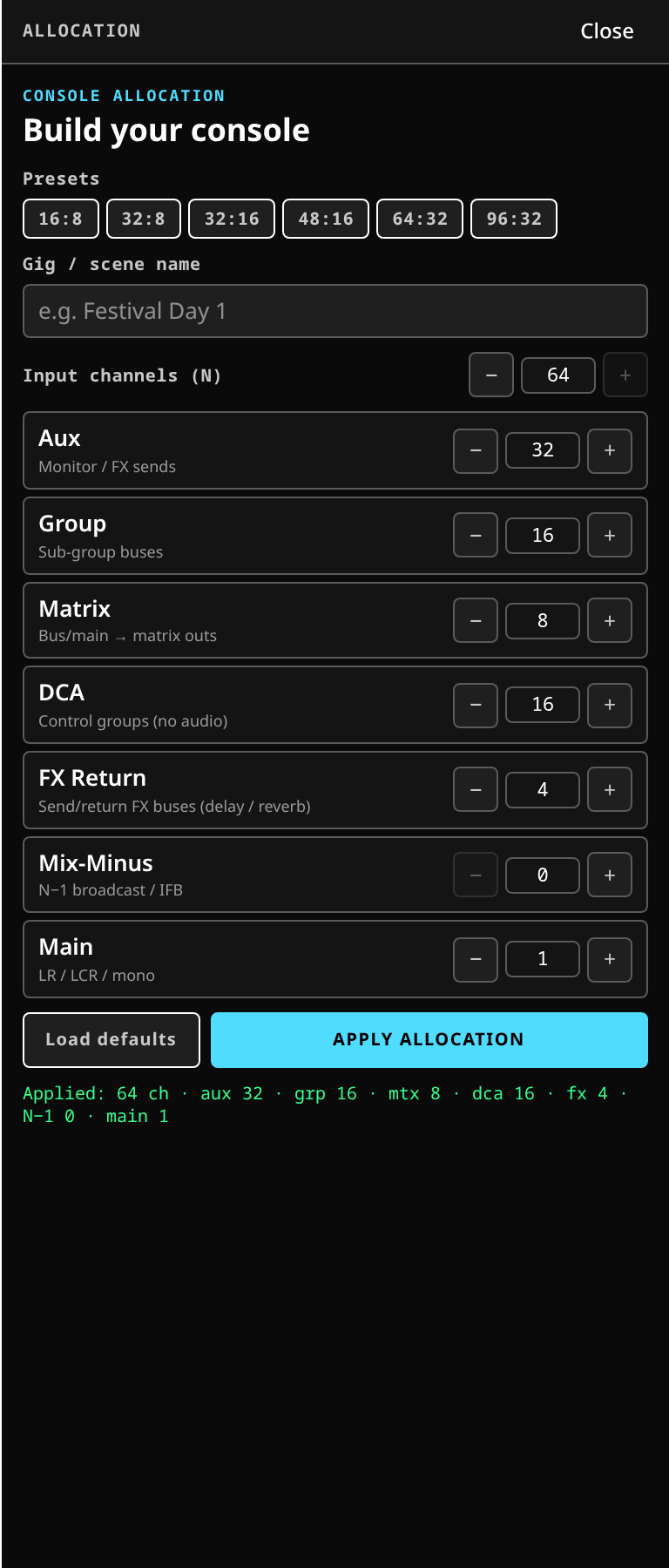
Build your console for the gig. A channel count, and a count of each kind of bus — aux, group, matrix, DCA, mix-minus and mains. Every summing bus is then sized to the channel count so that every input can reach every bus.
Presets take you from the minimum, 16 channels and 8 buses, up to 96 and 32. Load defaults puts the form back to what the server starts a fresh console with.
The panel shows what is left of the path budget as you change the numbers, so you find out that an allocation is too big for the machine here rather than during a set.
The console cannot be made smaller mid-show. Asking for fewer inputs than the desk is holding is refused, and the refusal says how many it holds.
Adapters
The I/O endpoints the console talks to: a REAC transport, a network audio device, a control surface. Each row shows its type, its status and its key settings.
The add and edit forms are generated from the adapter type itself, so a type that gains a setting shows it here with no change to the surface. A REAC adapter reports its own link state — established, probing, unconfigured — rather than a generic running/stopped lamp, because "the process is up" and "the wire is carrying audio" are different facts.
Control surfaces
Setup ▸ MIDI Controllers — the physical control surfaces, an X-Touch first among them.
Each row carries a presence lamp, refreshed every couple of seconds by the server actually probing the device, and an enabled switch. The switch is your standing intent: an enabled surface connects itself when its device appears and detaches cleanly when it vanishes, and it survives a restart. A surface that is configured and unplugged stays in the list, unlit — the desk keeps knowing about your control surface between shows.
Two things make adding one quicker, and neither happens without you:
- a Preset picker fills the add form from a template for a known surface;
- a first-run offer: when a recognised surface is plugged in and nothing is configured yet, the panel offers it with an explicit Add or Not now. It is never adopted silently, and once any surface is configured the offer stops appearing.
Gestures
Two timings that every attached control surface and the touchscreen read live:
- Double-tap window — how long the desk waits for a second tap before treating the first as a single one.
- Long-press threshold — how long a press must be held to count as a hold.
Raise the double-tap window if your second tap keeps being missed; lower it if two deliberate presses are being read as one gesture.
The server has the last word on the range: type a figure outside it and the field re-seeds with what the desk actually kept, so the panel never shows a value the console is not using.
There is also the confirm destructive actions switch, which governs whether removing things asks first. See scenes and sessions.
Interface takeover
Setup ▸ Patchbay — the exclusive-control switch, named for what it protects rather than the panel it opens.
The console can take exclusive control of the audio interface, severing every other application's link to the sound card. On a dedicated rig it removes a whole class of contention problems; on a shared desktop it would silently cut every other application's audio, which is why it is off by default.
The panel keeps two facts apart, deliberately:
- what you want — the switch;
- what the console actually holds — the status line under it.
So it says holding, or wanted but not held yet, or the reason it was refused. It never shows a lit lamp for a hold that is not there.
See also the patchbay.
Discovery
The network audio devices the console has seen — REAC, Dante, AES67 — with each one's protocol, name, address and channel count, and a Scan button to look again. Each device's protocol is a chip at the start of its row, and the same chip marks each row of the list of places discovery could not look. Add as adapter turns one into a configured adapter in one press.
The empty state is not one state, and the panel says which one you have:
- discovery swept the network and found nothing;
- discovery has not looked yet;
- discovery could not look, and why.
That last one matters: a stagebox that is busy carrying audio can be too busy to answer a probe, and a panel that reported it as "no devices found" would be telling you the opposite of the truth. The same facts reach the header's warnings badge, so you do not need this panel open to know discovery is blind.
Below the devices, Patchbay nodes is the override on what the patchbay shows. A node the default filters hide — a video capture card that also carries audio — can be included, and anything you have included or excluded carries a Reset back to the default. Each override is tagged Included or Excluded. The console's own internal plumbing is never offered.
Stageboxes
The REAC boxes this console knows: name them, bind them, and build a patch for a box that is not here yet.
That last part is what the panel exists for. Until a box is plugged in there is nothing to patch against, so a show's setup could not begin until the truck arrived. Add the box you know is coming, patch the gig against it, and when the real one turns up it takes over the row.
Real and prepared boxes are one list on purpose: they are the same thing, and the only difference is whether a recognition key has turned up yet. A prepared box becoming real is one row learning its key, not a move between two collections.
The models offered come from the console itself, along with each one's input and output counts, so the panel can never offer a box the console would refuse.
See head-amp control for what those boxes do once they are on the wire, and the clock for the segment they sit on.
RME TotalMix
Where an RME interface is in use, the console owns its internal routing.
An RME normally does its own monitoring inside the box, which means audio can reach the outputs without passing through the desk. Arming ownership declares a straight-through output map at unity and zeroes every hardware-input crosspoint, so the interface stops routing around the mix.
It is off by default and it is a real decision: turning it on cuts the interface's own zero-latency direct monitoring. Turn it on when the console is the mixer and you want one signal path; leave it off if you are relying on the box's own monitoring.
The panel binds to what the console has declared, not to a reading of the hardware — these controls cannot be read back — and re-declares the whole map at boot, whenever the interface reconnects, and whenever you press Re-assert routing.
Phantom power and pad are not here: they belong to the source. See head-amp control. The clock is not here either; see the clock.
Network
The address and port the server is answering on, each value shown with where it came from — a persisted setting, a command-line flag, an environment variable or the built-in default, highest precedence first.
You can edit the persisted override: fill a field and it is persisted and outranks the command line and the environment at the next boot; empty it and the lower layers win again.
The server does not re-bind a running listener, so a change is flagged takes effect on restart rather than pretending to have applied.
Plugin analysis
Plugin cost measured on this machine, beside the figures the catalog ships.
Every count on screen is split between the local run and the shipped one, and each run's provenance is named — machine, processor, CPU governor and date — so you always know which of the two you are reading. A cost figure ranks plugins on one machine and the panel says so next to the run it applies to.
Run it on the rig you are going to use, and the catalog's rankings become your rig's rankings. See the plugin catalog.
The rest of Setup
| Item | Documented in |
|---|---|
| Come-up gain | The channel strip |
| Clock | The clock |
| Sessions | Scenes and sessions |
| Preferences | Personalities and themes |
Related
- The console menus — every menu item in one list.
- The surface — where the config zone sits.