The patchbay and the graph
openmixer treats the live PipeWire graph as the truth. Anything producing audio on the machine — a browser tab, a media player, a microphone, a stagebox — can be patched into a channel, and anything patched elsewhere shows up here too.
The routing patchbay
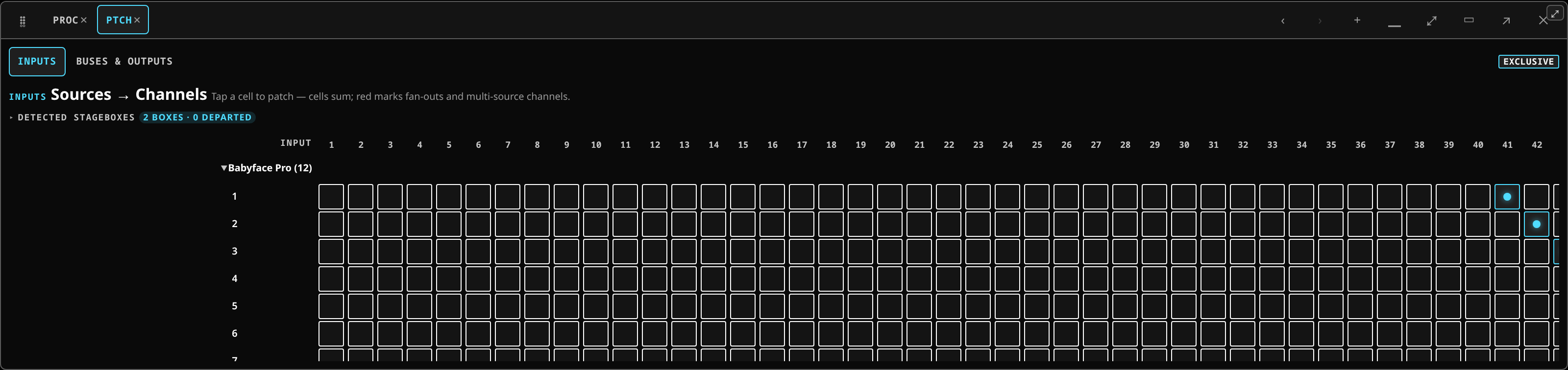 The routing patchbay: sources down the side, channels across the top, a cell per patch.
The Patchbay chip is a crosspoint list.
- Rows are the live sources: a stagebox, a microphone, an application, the talkback generators.
- Columns are your input channels.
Tick a cell to patch that source into that channel. More than one source can sum into a channel. A source feeding more than one channel is flagged, with a count, so a fan-out is never something you discover by accident.
Sources are grouped into bands by device: a stagebox appears as one band, its ports
numbered 1 … N, with the box's own label as the band header. A band can be collapsed,
and it stays collapsed across a re-patch.
Below the grid, the output routing row picks the real sink each bus, matrix output and the main mix feeds — headphones, a stagebox playback, an interface output, another application.
Each source row also carries a routing policy, a small glyph before its name that opens a menu:
| Policy | Glyph | What the console does |
|---|---|---|
| Offered | → | Listed as a source. Under exclusive control the console takes its stray link to the sound card. |
| No auto-patch | ⊘ | Listed, but the console never patches or re-links it on its own. |
| Leave alone | – | Not offered: folded away, and the console neither unlinks nor patches it, so the system keeps its own routing. |
| Ignored | ✕ | The console has nothing to do with it: not offered, never patched, and its links onto the desk's ports are removed. |
Getting a real source in
Just make it play. Start music in a media player or audio in a browser tab and it appears as a new row; tick it into a channel and it is in the mix.
A stagebox appears as soon as it establishes. If it does not, see the stagebox is not establishing.
The stagebox and interface lists
Above the grid, the stageboxes fold opens a card per box. Closed, its chip counts them —
3 boxes · 1 departed, red while any box the show expects has gone. Each card is headed by a
GROUP badge, because a box is one band of inputs in the grid, and a link chip that says
whether it is here: CONNECTED, PROBING while the console looks for it, NO BOX when
the wire carries none, or NOT PRESENT in red for a box this show is waiting on. Hover the
red one for the same reason its disabled preamp controls give.
The interfaces fold lists every sound card the console can see, with a switch to enable or
disable each; closed, its chip reads 2 / 3 enabled.
In the grid, a source row can carry a one-character chip before its name: ∅ when the source is not on the graph right now — its patch is kept and reconnects when it returns — and ↺ when it has come back and the patch re-established.
The source layer
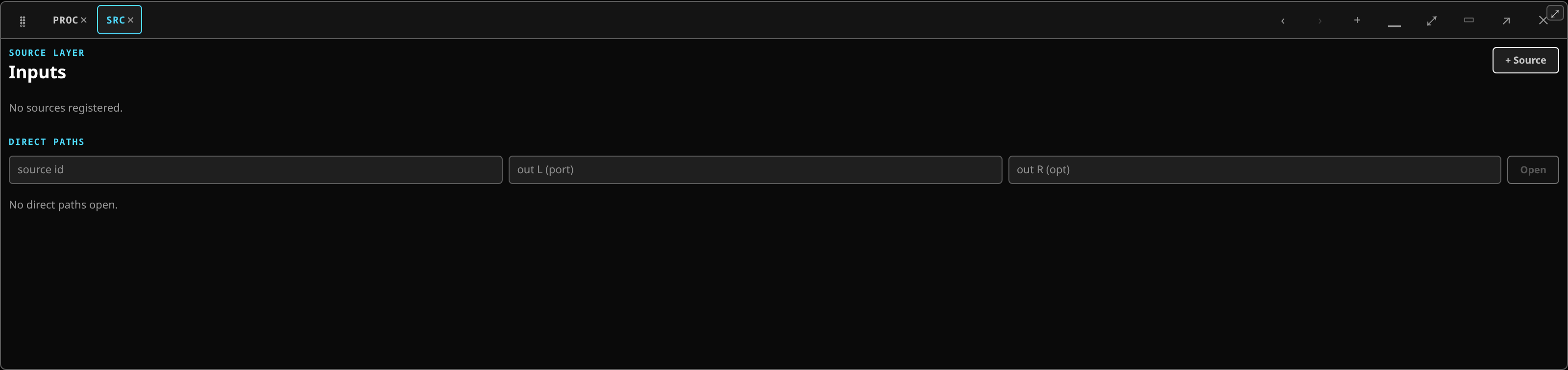 The source layer: named inputs with their own head-amp control and direct paths.
The Source layer chip is where an input's identity lives: its name, its head-amp settings — gain, phantom, polarity — and which physical input feeds it.
The point of the separation is that those settings follow the source, not the channel. Re-patch a microphone to a different channel and its gain and phantom go with it. See head-amp control.
Direct outs and direct paths are managed here too: a source can take a path to an output without consuming a channel.
The graph
The Graph chip shows the same routing as a node canvas, auto-arranged so signal flows left to right with the fewest crossing wires and stereo pairs kept side by side. Each node has its inputs down the left edge and its outputs down the right.
- Drag from an output dot to an input dot to make a connection.
- Click a wire to cut it.
- Hover a node to light its whole upstream-and-downstream signal path.
- Pan the canvas, zoom with the wheel, and collapse groups to tame a big graph.
It reads the live graph when a server is reachable and falls back to a demo graph otherwise. A chip in the panel's header says which you are looking at: live PipeWire, or offline. In full screen, Esc or Close returns to the panel.
Worked example: a microphone from the stage to the PA
The whole path, once, on a rig with a Roland S-1608 stagebox on the REAC wire and an RME Babyface Pro as the interface the PA hangs off. Substitute your own box and your own interface; the steps do not change.
A condenser microphone is plugged into the stagebox's input 3. Nothing is patched.
Get it into a channel
- Open Patch ▸ Patchbay. Give it the height it deserves with the ⤢ button — the grid is easier to read at full height.
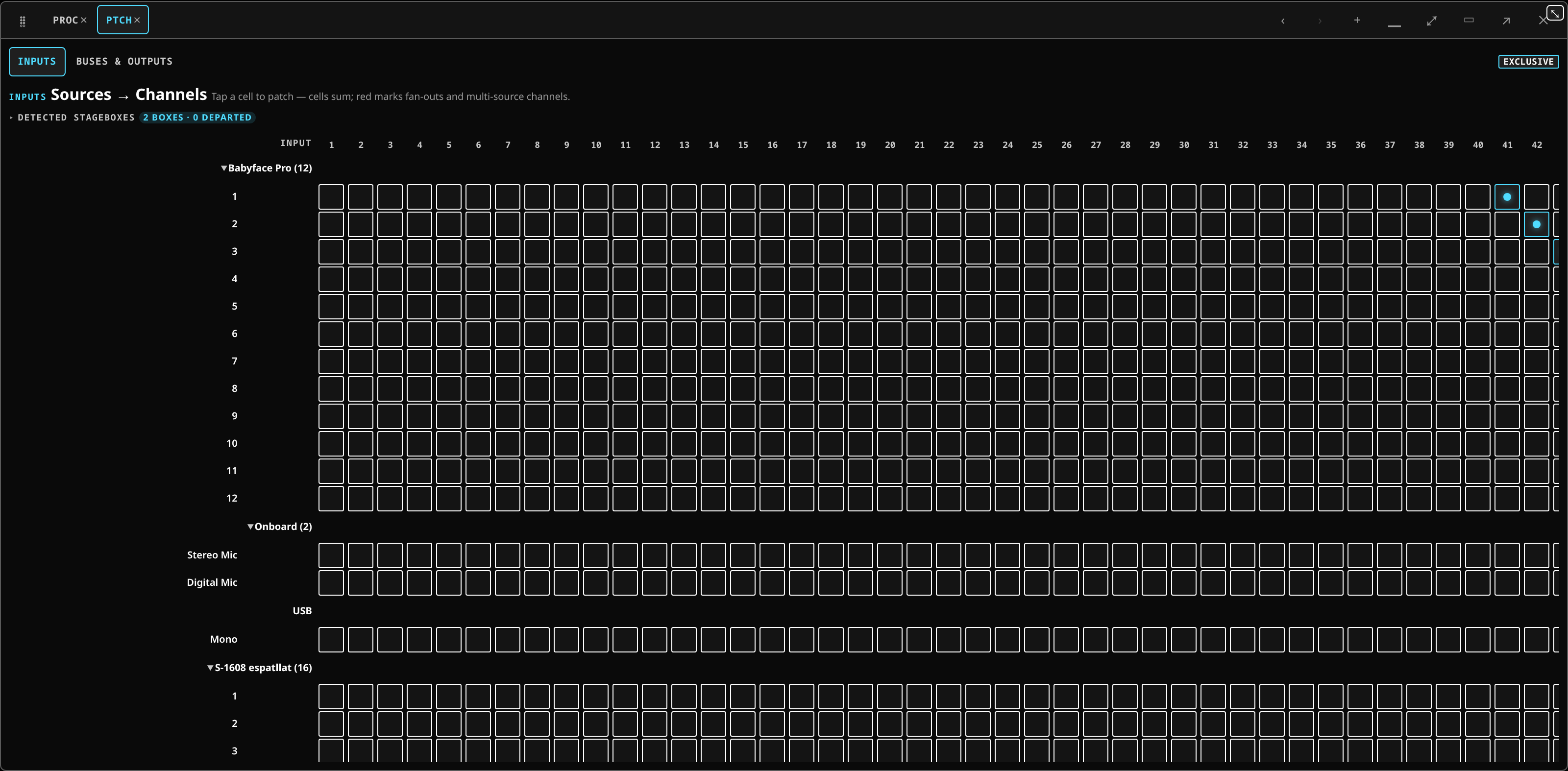 The input grid at full height: sources down the side grouped into a band per device, channels across the top, a cell per patch.
- Find the stagebox's band. It appears as one band headed with the box's own name and
its shape — S-1608 (16 in / 8 out) — with its ports numbered
1 … 16under it. A band can be collapsed, and stays collapsed across a re-patch. - Tick the cell where the box's port 3 meets channel 1. That is the patch. The channel now has a source.
- Name it. Select channel 1 in the bay and type a name on the strip — Vox — so the rest of the evening is about a name and not about a number.
Set the head amp
- Open Patch ▸ Source layer, or use the head-amp row at the top of Layouts ▸ Processing with channel 1 selected. Either reaches the same controls.
- Switch on +48 V. The box's own LED for that input should light. Give it a few seconds; a condenser takes a moment to come up.
- Set the gain. Have somebody talk or sing at working level and bring the gain up until the channel meter is peaking healthily below clipping — a little over halfway is a fair target on this desk's scale.
- Use the pad if you have to. If the gain is at its bottom and it is still too loud — a close-mic'd snare, a horn — switch the pad in and set the gain again.
- Check the polarity against the other microphone on the same source, if there is one. See smart alignment for doing that with numbers rather than by ear.
Those settings follow the source, not the channel. Re-patch this microphone to a different channel and the gain, the phantom and the pad go with it.
Get it out to the PA
- Bring the channel fader up and make sure it is assigned to MAIN — the Routing panel shows the MAIN on/off for the selected strip.
- Open Patch ▸ Patchbay ▸ Buses & outputs. Find the Main L and Main R rows.
- Patch them onto the interface's outputs. Where the device declares a stereo pair, the L+R button beside the L cell does both in one gesture; otherwise click the two cells separately.
- A leg block appears under the two rows, captioned with where the mix lands. Trim it there if the amplifier wants a different level, and delay it there if the boxes are further away than the stage. See output legs.
Get it out to a wedge as well
- Patch the box's own outputs. The stagebox is a sink too — it appears in the same output list with its 8 output ports. Patch Aux 1 onto the box's output 1 and the wedge plugged into it is fed from the stage, without a cable back to front of house.
- Build the wedge mix with sends-on-faders.
What you should see: the channel meter moving when somebody talks, the main meter moving with it, sound out of the PA, and the phantom LED lit on the box.
What it means if you do not:
- No meter on the channel. The patch did not take, or the microphone is in a different port than you think. Look at the cell again, and at the box.
- A meter but no phantom LED. Nothing on this screen can prove phantom power is at the pins — an indicator is a claim, not a measurement. Look at the box.
- The channel meters and the main does not. The channel is muted, its fader is down, or it is not assigned to MAIN. Check the Routing panel.
- The main meters and nothing comes out. The mix is being made and is not reaching hardware. That is the output patch, and it is the single most common cause of a silent PA: the main output is silent.
- It works and then stops when a box is replugged. Routes are stored by name, so they come back by themselves. If they do not, see the stagebox is not establishing.
Routing is stored by name
Routes are persisted by name, not by whatever id a device happened to have. That is what lets a session load onto a rig where the devices enumerated in a different order, and what lets a USB interface that re-plugged get its routes back automatically.
The mixer also re-issues routes as ports register, so a device that appears late — an interface that takes its time enumerating — is picked up rather than left silent.
What it cannot do is route to ports that do not exist. A device presenting a different set of ports under a different profile is the classic cause of a silent output; see the main output is silent.
Exclusive control
The console can take exclusive control of the device outputs, severing every non-mixer application's link to the sound card while leaving those applications visible in the patchbay for manual patching. On a dedicated rig it removes a whole class of contention problems.
It is not on by default, because on a shared desktop it would silently cut every other application's audio. While it is on, the patchbay's tab line carries an Exclusive badge; hover it for what that means. Fire it deliberately from the patchbay, or configure it for a rig that is only ever a mixer — see environment variables.
The standalone patchbay
The same graph engine runs as a standalone tool, openmixer-patchbay: a small server that
exposes the machine's live PipeWire routing with no mixer attached. It is useful as a
plain patchbay in its own right.