Sends, buses, groups and DCAs
Assigning a channel
Where a channel's audio goes is two decisions, and they are separate.
MAIN — on or off. A channel with MAIN off is still in the desk, still metering, still feeding its sends; it simply is not in the house mix. That is what you want for a click track, a talkback mic, or a source that only ever feeds a monitor.
Groups — a chip per group bus. Ticking one sends the channel into that group, which then folds into MAIN under its own fader and its own processing.
Both live in the Routing panel for the selected strip — Layouts ▸ Routing, which opens beside the bus masters so you can assign channels into a group and ride that group's fader on one screen.
A channel can feed MAIN directly, or through a group, or both. Through a group and directly is usually a mistake — it arrives twice, at two levels, and the group fader only moves one of them.
Select a group strip instead and the Routing panel turns round to the group's side: a MAIN chip for whether the group folds back into MAIN — off makes it a stem — and a chip per input channel for its members, the same assignments seen from the group.
What this stage guarantees: Every sample this stage produces is a finite number — never NaN, never infinite. Every source feeding this bus is summed linearly, coefficient times signal, with no other mixing step.
Aux sends and sends-on-faders
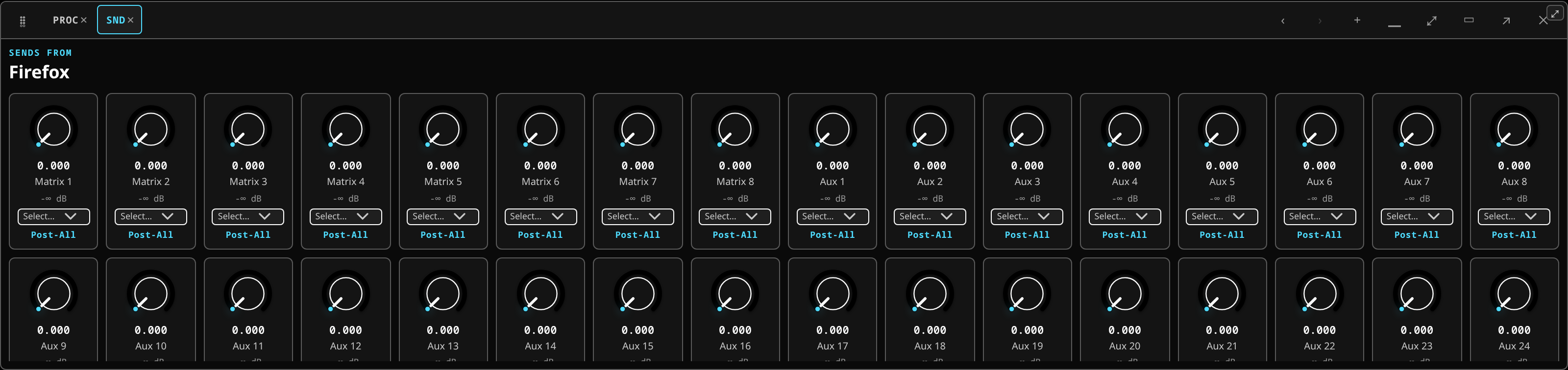 Per-channel sends for the selected strip: level and tap point per bus.
Two ways to work them.
The Sends tab on the channel strip shows one channel's sends to every bus as a row of faders, each with a tap point selector — pre or post fader, with the SSL- and Roland-style landmark presets (top of channel, pre-EQ, post-EQ, pre-fader, post-fader) alongside the plain choices.
Sends-on-faders is faster for building a monitor mix. Select the aux — SEL on its
strip, wherever it is on the desk — and press the SENDS ON FADERS button, or the F
key: the whole fader wall becomes that aux's send levels. Every input fader is now its send
into the selected aux, with a per-channel PRE/POST tap and an IN/OUT include toggle.
Press F again to return to the main mix.
The strip you select is what the bay points at, so there is no separate target to keep in step. With nothing selected the picker beside the button names the aux instead; select any strip and the picker greys out, because the selection is now doing that job.
The bay's appearance changes distinctly in sends-on-faders, because moving what you think is a channel fader and actually moving a send is a mistake worth designing out.
All channels into one bus
That is the monitor engineer's view: when you are building the drummer's wedge you do not want one channel at a time, you want the whole band's contributions to that one wedge on one screen. It is the same gesture as everything else — select the bus, press SENDS ON FADERS — and the wall becomes every channel's send into it, on the big faders.
The bay turns round with the selection:
- select a bus and press SENDS — every channel's send into that bus, on the wall;
- select a channel and press SENDS — that channel's send out into every bus, drawn as a rail of buses with the channel's own fader beside it;
- select nothing and the picker beside the button names the bus, as it always did.
Both directions are the same levels on the same rows, so it never matters which way round you came at them. The Sends tab on the channel strip shows the second of those in miniature, for when the wall is busy with something else.
Bus masters, subgroups and glue
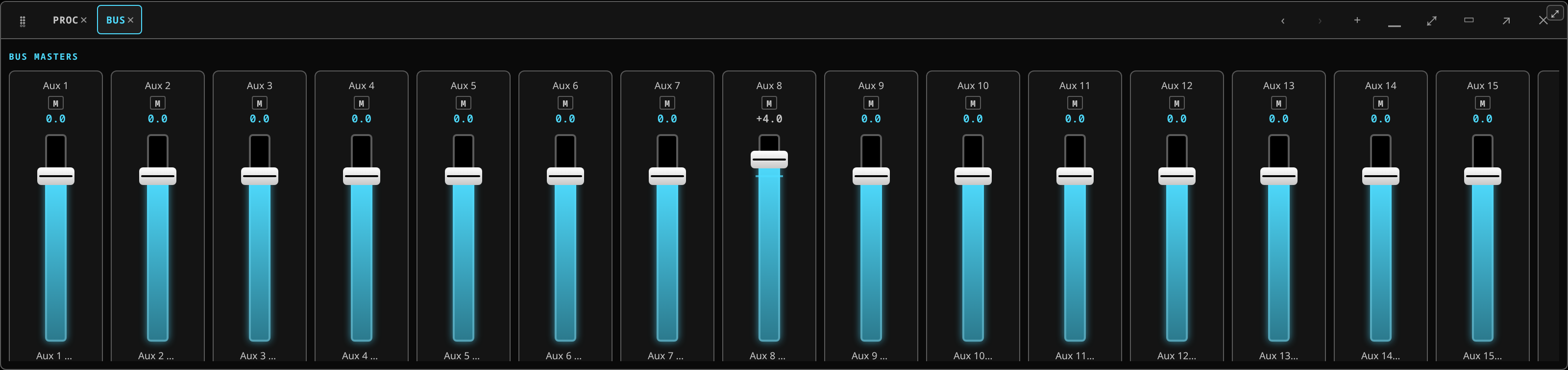 Bus masters, with the Mute Groups section where mute-group membership is assigned.
Open the Sends chip to reach the Bus masters panel. Each aux and group bus has:
- a fader;
- a CHAIN button that opens the bus's own reorderable processing — a bus is a strip too, with its own EQ, dynamics and inserts;
- a one-click +GLUE bus compressor;
- an N−1 mix-minus toggle with a per-channel exclude list, for clean feeds.
A subgroup is a group bus used as one: channels feed the group, the group feeds the main, and the group's fader and its inserts sit over all of them.
Worked example: building a wedge mix on the faders
The drummer wants more keys and less guitar in wedge 1, which is fed by Aux 1.
- Select Aux 1. Switch the bay to the Aux layer and tap the Aux 1 strip, or pick it from the target menu in the bay toolbar.
- Press SENDS ON FADERS in the fader-bay toolbar, or press
F. The bay changes appearance distinctly — that change is deliberate, because moving what you think is a channel fader and actually moving a send is a mistake worth designing out.
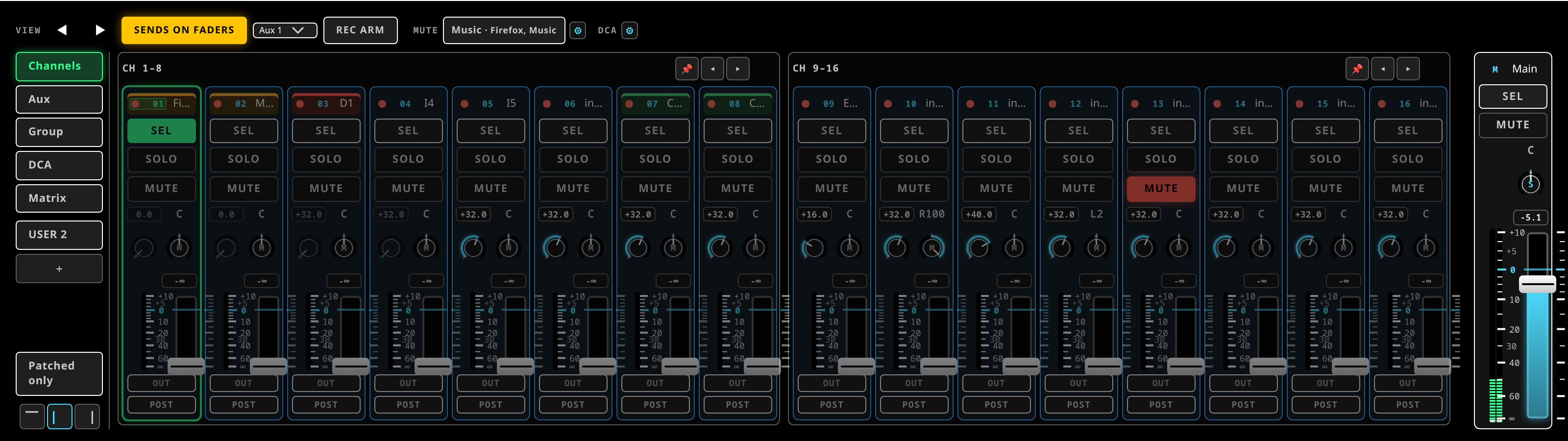 Sends-on-faders: every input fader is now its send into the selected aux, with a per-channel tap and include toggle, and the aux master pinned beside them.
- Every input fader is now its send into Aux 1. The keys channel and the guitar channel are wherever their sends to that wedge currently sit.
- Push the keys send up and pull the guitar send down, listening on the wedge or on cue.
- Check the tap on each. A PRE send ignores the channel's main fader, which is what you usually want for a wedge: pulling the guitar down in the house should not change what the drummer hears. POST follows the house fader, which is what you want for a reverb send.
- Press
Fagain to return. The faders are back to the main mix, exactly where you left them.
What you should see: the two faders you moved are at new positions in sends-on-faders, and the main mix is untouched when you come back out.
What it means if you do not:
- The faders did not change appearance. Sends-on-faders did not engage. Check a bus is actually selected — with no target there is nothing to be the sends of.
- Moving a send changed the house mix. You were not in sends-on-faders; you moved
channel faders. Press
Fand check the bay's appearance before touching anything. - The wedge did not change. The send moved but the wedge is not fed by that aux. Check which bus feeds that output in the patchbay.
- Pulling the guitar down in the house also pulled it out of the wedge. That send's tap is Post-Fader. Set it to Pre.
Mix-minus
Mix-minus (N−1) builds a feed that contains everything except a chosen channel — a presenter's earpiece that carries the show but not their own voice, a remote contributor who should not hear themselves delayed.
Toggle it on the bus and set the exclusions per channel.
DCAs
A DCA routes no audio. Its fader trims all its members together, so a channel can belong to a DCA and still take its own path through the desk untouched. That is the whole difference from a group: a group is a bus that audio flows through; a DCA is a control that moves other faders.
A DCA is a strip. Page the fader bay to the DCA bank and there they are, with the same chrome as every other strip: the fader is the DCA's own level, the head is its name and its SEL.
Assigning it is the traditional gesture. Press a DCA's SEL and the bay goes into assignment for it: every channel strip's SEL key becomes IN / OUT for that DCA, lit on the channels it already holds. Press the strips you want. Nothing else moves — a member's own fader stays exactly where you left it, which is what a DCA is. Press the DCA's SEL again to leave; another DCA's SEL moves the assignment straight to it.
The chips are the fast way. The ⚙ beside the DCA chips in the fader bay's control line opens the manager: a card per DCA with its name, and a chip per channel. Tick a whole section there in one glance. It is the same membership — what you do on the bay shows in the chips, and the other way round.
The chips beside the ⚙ do something else again: one tap spills that DCA — its master and its members alone on the bay — and a second tap brings back the layer you were on.
DCAs can nest.
Mute groups
In the same master bay, in the Mute Groups section. Each group has a MUTE button that silences and later restores every member at once, and a MEMBERS popover with a checkbox per input.
A channel muted by a group keeps its own mute state underneath — release the group and it returns exactly as it was, rather than un-muting something you had muted deliberately.
The group MUTE buttons are mirrored onto the fader-bay toolbar so you can fire them without leaving the wall. There each group is a chip with its name and its members, lit red while the group is muting; a DCA's chip on the same line lights instead while that DCA is spilled onto the bay.
Which one do I want?
| Want | Use |
|---|---|
| A separate mix at a different balance (monitors, an FX feed) | an aux |
| One fader and one compressor over a group of channels that all go to the main | a group / subgroup |
| One fader over channels that keep their own routing | a DCA |
| One button that silences a set of channels | a mute group |
| A feed of everything except one channel | mix-minus on a bus |